
Smart Tracker Solution Based on EG912U
Hardware preparation#
- One Windows computer, recommended Win10 system.
- One EG912U Quecpython EVB
- A functional SIM card
Environment Setup#
- Download and install EG912U series module driver:QuecPython_USB_Driver_Win10_U_G。
- Download and install VSCode。
- Download and unzip QPYCom Tool to the appropriate location on the computer.
- Download固件包。
- Download实验源码
Set up your smart tracker#
Follow these steps to power up the smart tracker:
- Before turning on, insert the nano SIM card (with data service enabled) into the SIM card slot. If a SIM card is inserted after booting up, the device needs to be restarted.
- Power on through any of the following methods:
- Method 1: Press the power button on the side of the device.
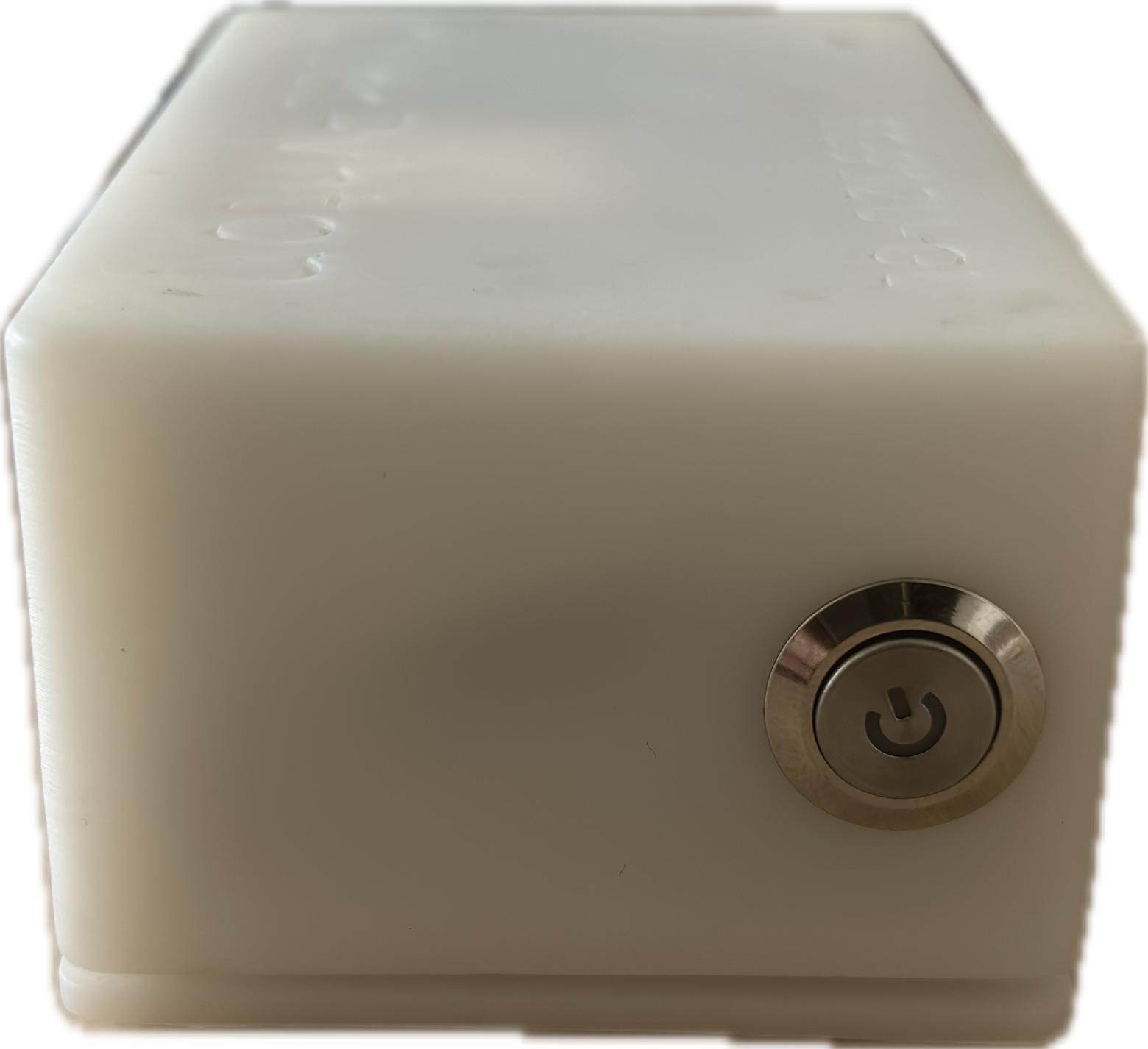

- Method 2: Connect the smart tracker to a laptop or power bank using the included USB-C cable, and the device will automatically turn on.
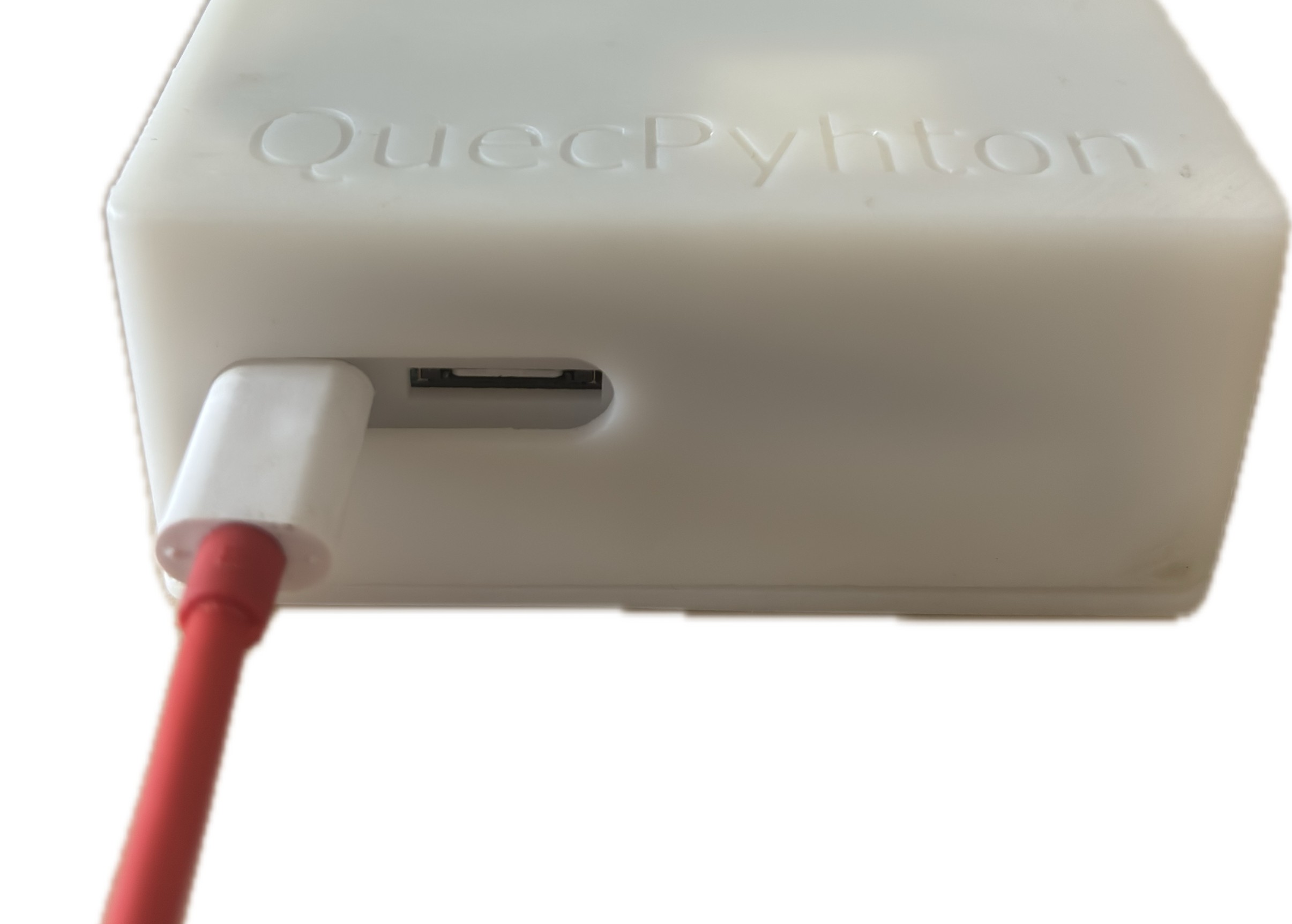
3.After booting up, the smart tracker will connect to the cellular network and link to the Acceleronix asset management SaaS platform.
Connect to the asset management SaaS platform#
Acceleronix 开发的资产管理 SaaS 平台为特定行业提供全面解决方案。它涵盖从 TSL 模型功能定义到 SaaS 平台管理及移动应用设备控制的全业务流程。
该资产管理 SaaS 平台支持用户对设备进行操作,可基于 TSL 模型对硬件数据进行动态分析。它集成了水质、温度、湿度、光线、二氧化碳等多种传感器,以适应不同场景。功能包括实时数据查看、历史运行曲线、数据聚合,以及基于位置设备的设备地图与轨迹回放。
设备开发#
开机#
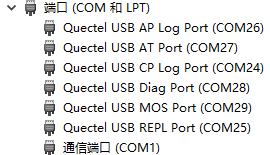
完成硬件连接工作后,当PWR,SCK1亮起或电脑设备管理器的端口列表出现包含Quectel USB字样的COM口,表示开机成功
烧录固件包#
脚本导入与运行#
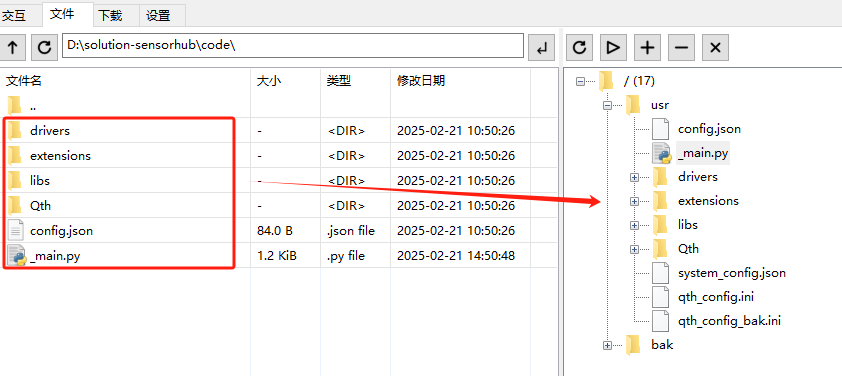
1.参考此章节,将源码目录下的code文件夹中的所有文件按原目录结构导入到模组文件系统中,如下图所示
2.参考此章节,执行主程序文件_main.py
3.参考此章节,停止程序运行。
业务调试#
程序启动#
执行_main.py脚本后,程序开始运行,会打印拨号信息,包括拨号状态、IP地址、DNS服务器地址,设备号等

数据检测#
开始运行后会打印启动信息

查看设备位置(LBS)#
- 点击访问云平台,在设备列表中点击 详情,打开设备详情页。
- 进入 位置 标签页查看 LBS 位置数据。
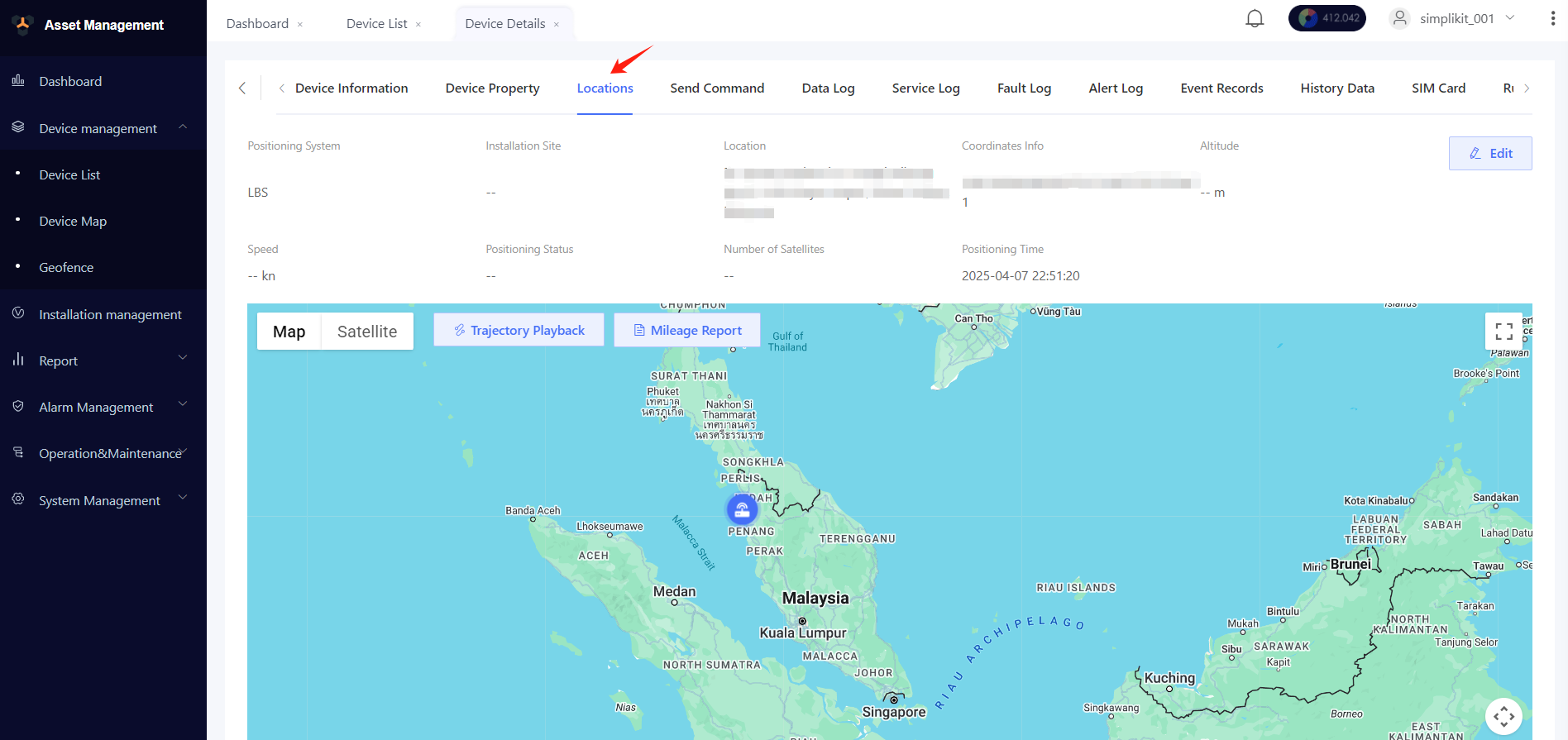
注意:位置每 30 分钟更新一次。如需手动刷新,请点击应用控制面板中的刷新按钮,然后重新加载页面即可查看更新后的位置。
查看和管理传感器数据#
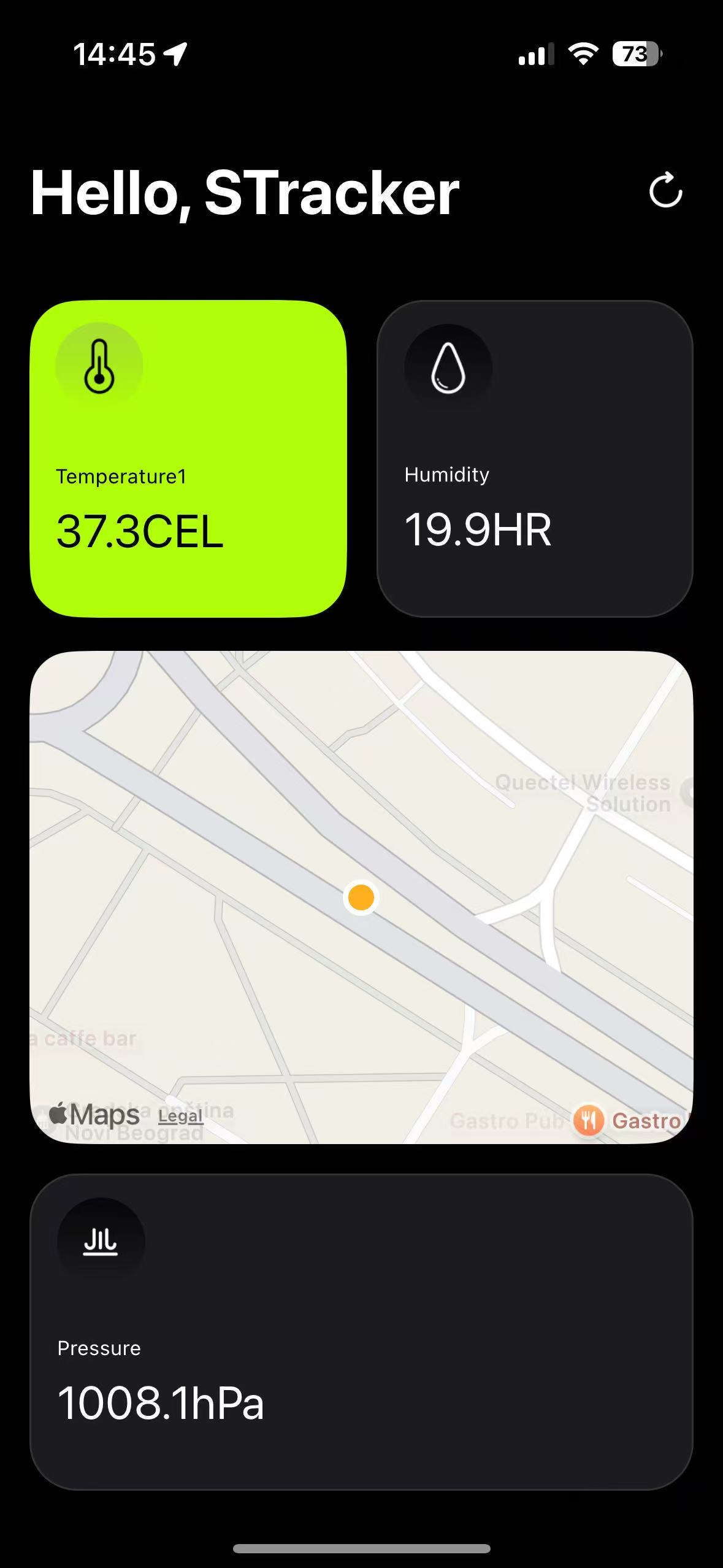
- 当设备在线时,在 Wonderfree 应用中点击设备进入控制面板。
- 查看智能追踪器的实时传感器数据和 LBS 位置数据。
- 如需更新传感器数据或 LBS 位置,点击控制面板右上角的刷新按钮